
-
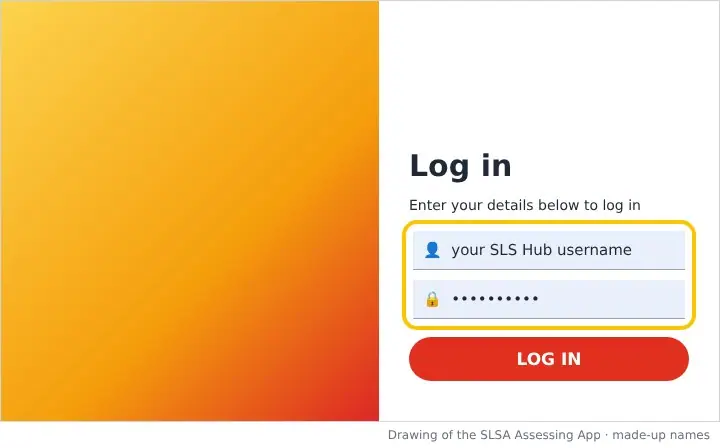
Log in
SLSA Assessing App, or sls.assess-sls.etrainu.com- Use your SLS Hub username and password (the same login as the old SLS Members Area).
-
Open the event
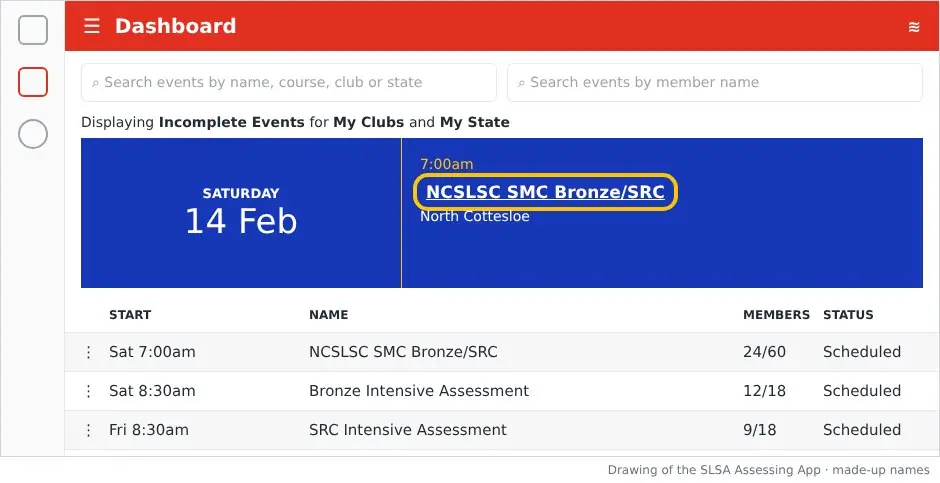
Dashboard- Tap the event name in the blue panel, or in the list below it.
- The list shows incomplete events for your club and state. Not there? Search by its name.
-
Sign everyone in
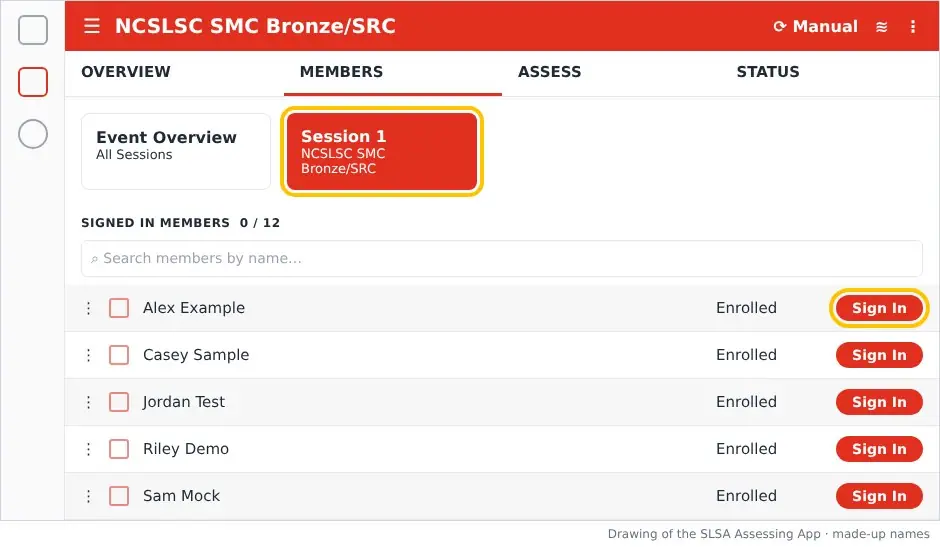
Members › Session 1- Tap the Session 1 tile, not Event Overview.
- Tap Sign In beside each person who turns up. This records their attendance.
- Sign people in before you start marking.
-
Add a walk-in
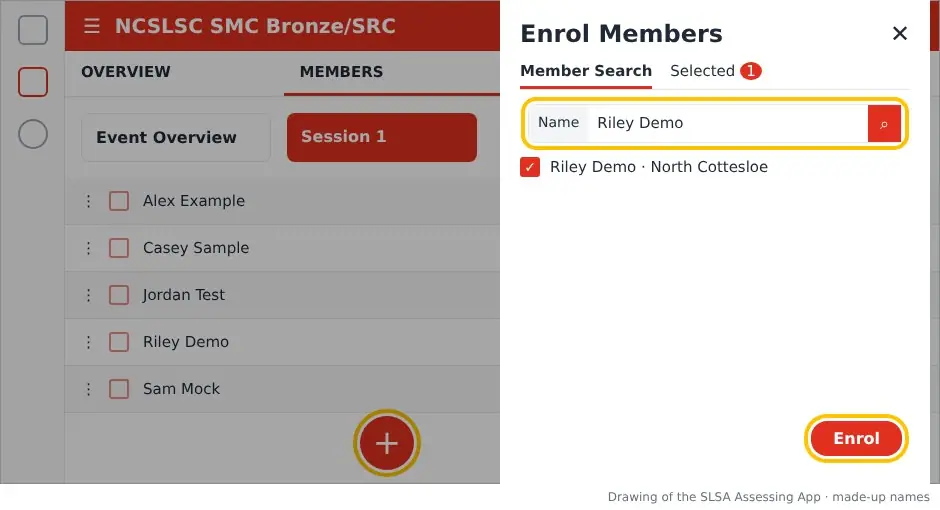
Members › Session 1 › red + (bottom right)- Search their first and last name.
- Tick the person, then tap Enrol.
- Then tap Sign In beside their name.
- Not found? See "Walk-in won't come up?" below.
-
Mark each skill
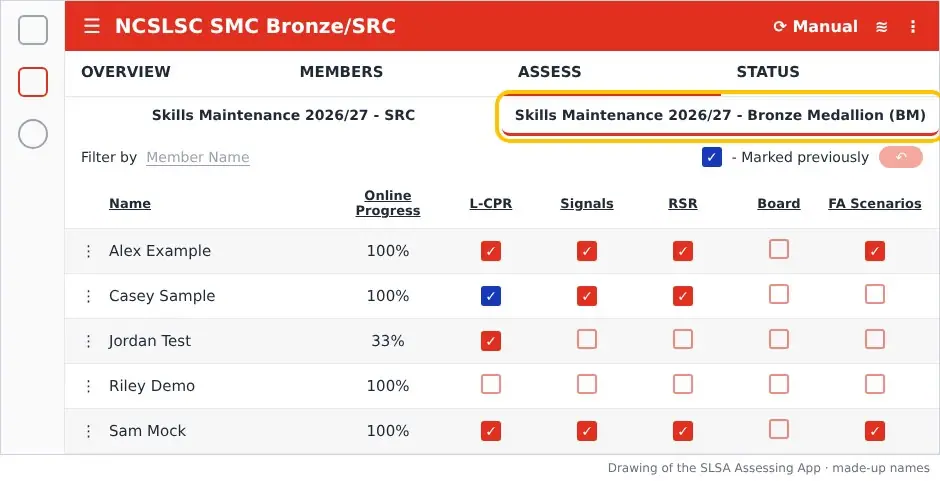
Assess › course tab- Pick the course tab at the top (Bronze or SRC).
- Tick a box when the candidate meets that skill.
- ⋮ beside a name adds a note.
-
Mark the event complete
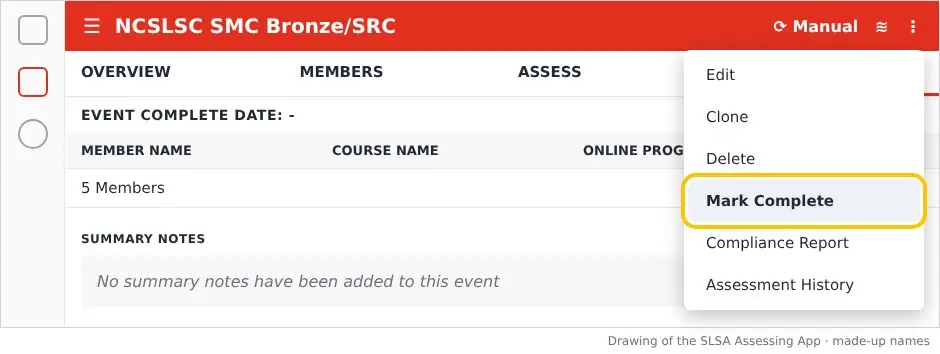
Status › ⋮ (top right) › Mark CompleteNot marked complete? Nothing reaches Surfguard and every award stays "in progress".
- Any assessor can do this, once everything assessed today is marked.
- Do it even if some candidates aren't finished. Their ticks carry over to their next event.
- The event then becomes read-only.
-
Watch for
- Button missing? Check the tab. Sign In only shows on Members › Session 1. Ticks only on Assess. Mark Complete only on Status.
- Blue tick: passed at an earlier event or online. It can't be changed.
- Wrong tick? Tap undo (↶, top right of Assess). It goes up to five steps back.
- Two or more assessors? You can all mark at once. Tap the sync icon to see each other's ticks.
- Online progress under 100%? Still mark their skills and mark the event complete. Tell the candidate to finish their eLearning as soon as possible: the award can't finalise until they do.
-
Walk-in won't come up?
Common reasons you can't find or enrol them- Award lapsed over 5 years: it can't be requalled in the app. Process it as an extended SMC via Form 14, plus the Bronze Medallion course eLearning.
- Prerequisite expired: First Aid expired in Surfguard means no ART requal. Bronze expired means no IRB Crew or Driver requal.
- Transferring clubs: awaiting transfer approval? They won't show in search until it's approved.
- Not registered this season: they won't show until they're registered.
Can't sort it on the day? Ask your head trainer.
Pictures: Drawings of the SLSA Assessing App with made-up names (North Cottesloe SLSC).